
Sony ODA Archive & Retrieve
CatDV fully supports the Sony ODA Archive system.
If you have the CatDV Archive Option you can use the standalone ODA Units (ODS-D55U, ODS-D77U) to manage your Archive and Restore workflow.
The Sony ODA plugin allows CatDV to archive and restore files to Sony ODA Library hardware and the stand alone ODA Units
The Sony ODA plugin is qualified to work with the following Optical Disk Archive Devices
Sony ODS-D55U
Sony ODS-D77U
Sony ODS-L10
Using the Sony ODA Plugin
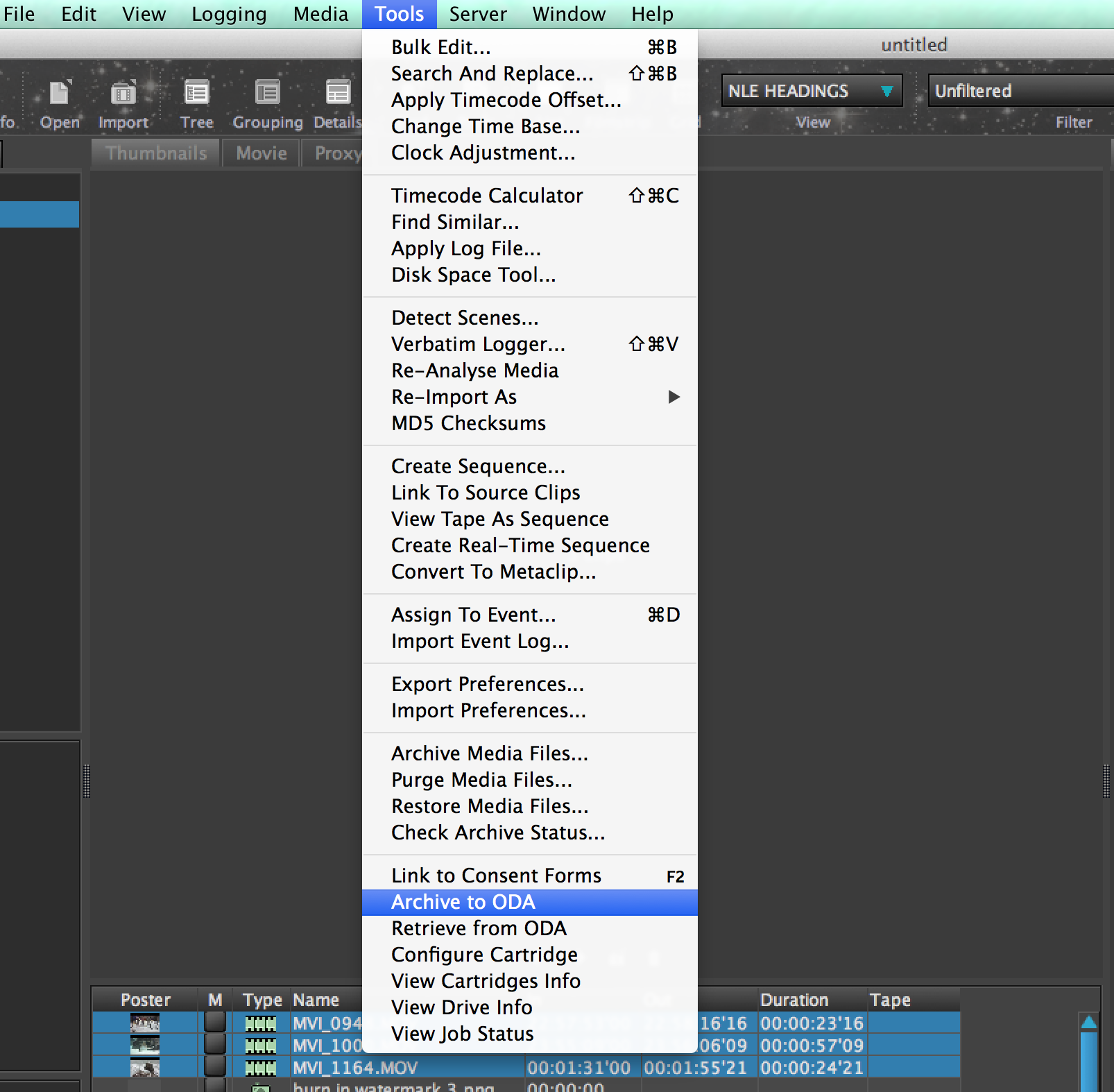
Archiving clips
Make sure you are logged into the CatDV server
Select the clips to Archive.
Select the Tools Menu Archive to ODA
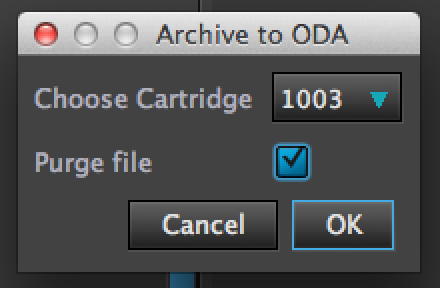
Select the correct tape to archive to. At this point you can select to purge the original media. This will keep a proxy if one has already been created, only the original source media will be deleted all the clip information and metadata will stored in the CatDV database.
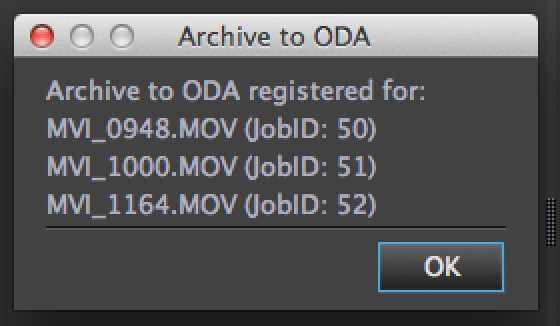
The archive information will then be sent to the ODA unit each file will be given a job number – this can be traced with the Sony File manager software.
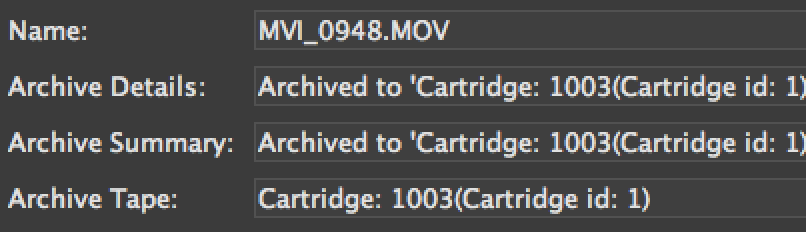
Once the archive process is complete the Archive details within CatDV are updated

The Archive Details Panel keeps a track of the ODA disk number and confirms that the media is written.
In this example the original movie was set to purge on completion.
A single red slash indicates that the file is offline and has been archived. A red cross indicates the file is offline and not archived.
The Sony File Manager also keeps track of the clips location and ODA details these are stored in the Sony File Manager database on the windows ODA server.
Configure Cartridge
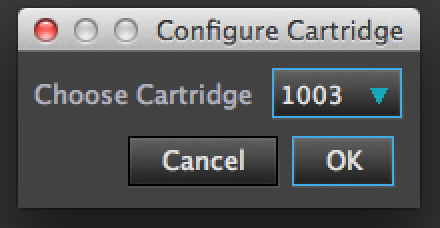
Select from the Tools Menu Configure Cartridge
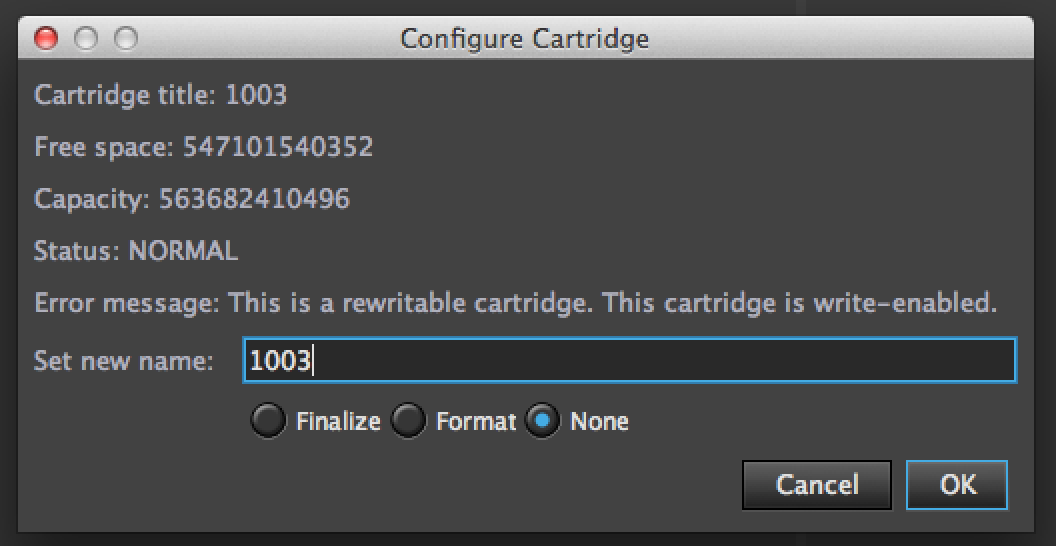
This allows you to access the cartridge configuration menu. Here you can Finalize or Format the ODA cartridge . You can also rename the ODA cartridge if required. The capacity and amount of free space available on the ODA cartridge is displayed.
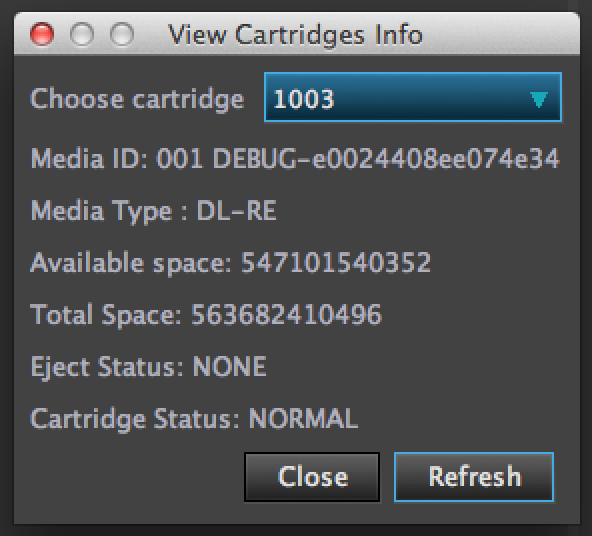
View Cartridges Info
This displays a read only list of Information for the ODA cartridge loaded into the library. Select the relevant ODA Media from the drop down Menu Choose Cartridge
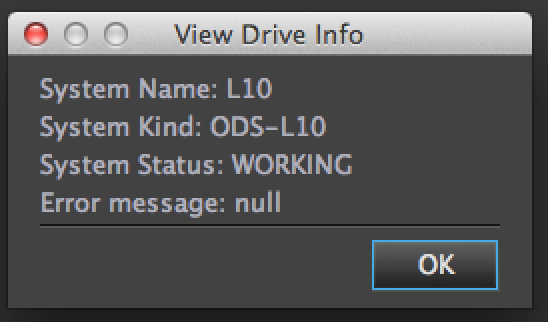
View Drive Info
The option will display a read only status view of the ODS hardware and current status
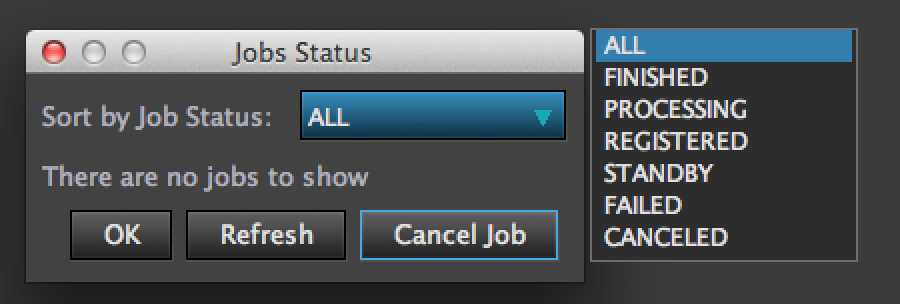
View Job Status
Returns a list of jobs active on the server . Here you can view current job that are being processed, Cancelled and failed jobs.
Troubleshooting
ODA options not available in the Tools Menu.
The ODA menu commands are only available once you are logged into the Server. If the commands are still not available or greyed out after logging in restart the CatDV Server from the Server Control Panel.